
WooCommerce Checkout Not Working: Diagnostic Checklist
If WooCommerce checkout is not working, identify the failing step first: page loading, address, delivery, payment or order confirmation. These checks help you narrow the cause without disrupting live orders.
Read the guide
Search Field Notes
A useful next read.
36 field notes
No matching guide yet. Try “checkout”, “shipping” or “catalog”.
All Field NotesLocate the first step that fails
Follow a safe test cart from product selection to checkout and note where the expected behaviour stops. Is the page blank? Does the address trigger an error? Are shipping or payment methods missing? Does Place order spin indefinitely? Record the visible message and whether an order appears in the admin afterwards.
Keep the test context: product and variation, quantity, guest or logged-in buyer, destination, browser and approximate time. A checkout that fails for one subscription or postcode needs a different investigation from a page that will not load for anyone. If a payment may already have been accepted, check the provider and order state before trying again.
Check the assigned page and checkout type
In WooCommerce settings, confirm that the intended Cart, Checkout and My Account pages are assigned. Open checkout while logged out and check the URL, redirects and page content. The store may use Checkout blocks, classic shortcodes or a custom flow; identify which is active before changing the page.
If the problem started after an edit or redesign, compare the assigned page and its content with the previous working version. A visually finished page can still be the wrong configured destination. For Checkout blocks, check the exact gateway, custom fields and rule extensions for compatibility. Switching checkout type is a change to rehearse, rather than a universal fix for any checkout error.
Check methods against the actual cart
A gateway can be enabled but unavailable for a currency, product type or checkout implementation. A shipping method can exist but belong to a zone the address never matches. Compare the missing choice with the store’s intended business rules, then check the installed extension and relevant settings.
Use a simple cart as a comparison, followed by the failing variation, recurring product or mixed cart. This helps separate a general checkout fault from a rule that applies to one purchase. Also review discounts and customer roles if they change available methods. Keep intentionally unsupported destinations restricted; making every method appear can create an order the business cannot fulfil.
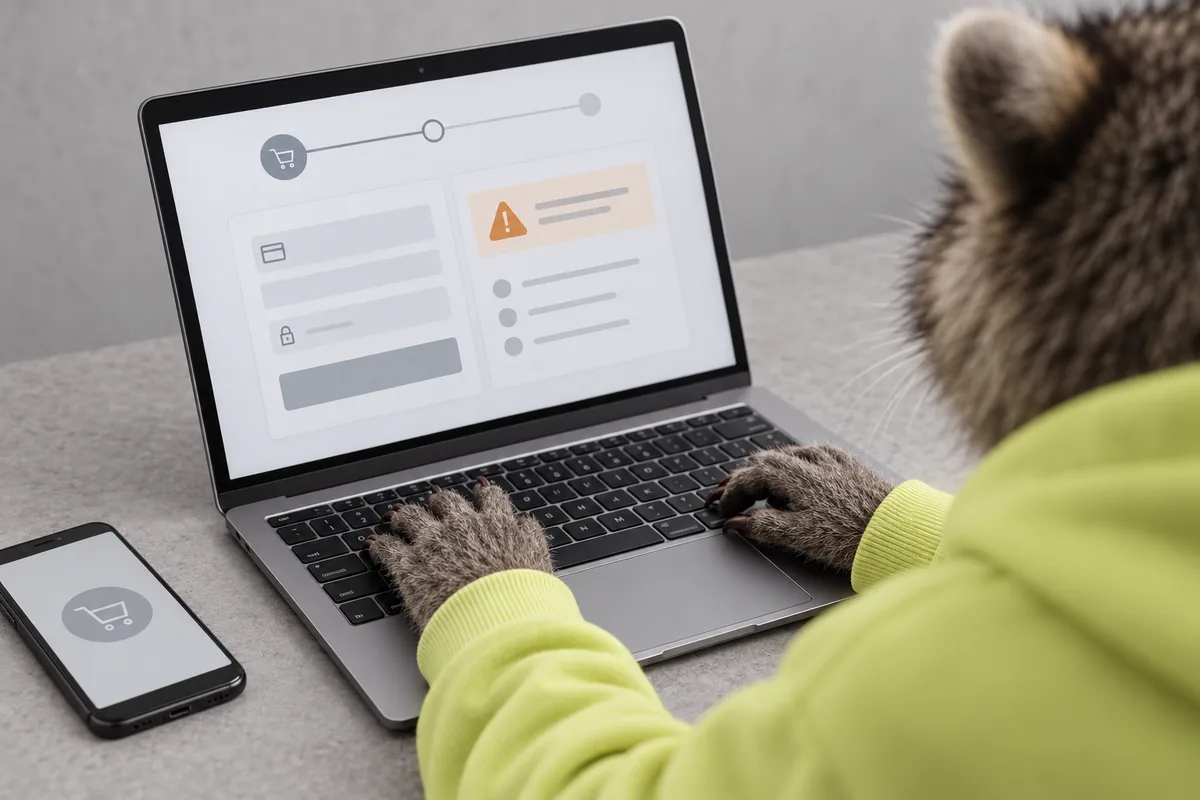
Use browser and server evidence to narrow the cause
The technical owner can correlate the failed attempt with browser errors, network responses, order notes and private WooCommerce logs. A script error may prevent submission; a server error may stop order creation; a gateway response may explain a rejected payment. Treat the evidence from that attempt as the starting point.
On staging, compare recent theme, plugin and cache changes. Keep cart, checkout and account responses dynamic under the host’s cache rules. If conflict testing is needed, reduce and reintroduce components deliberately while repeating the same case. Do not disable a batch of live extensions or publish full browser exports: they can contain session data and customer information.
Checkout cases worth testing
Use the failing basket first, then check the nearby customer and payment cases.
| Check | What to check | Next step |
|---|---|---|
| Buyer state | Repeat the failure as the same guest/account state, device and browser. | Keep the context consistent. |
| Basket + address | Use the failing product, option, discount and destination, then a simple comparison. | Check which rule differs. |
| Checkout + payment | Identify blocks/classic checkout and the exact gateway extension/version. | Verify order and email afterwards. |
Verify the complete purchase after the fix
Retest the exact failed case, then check cart changes, address handling, delivery, the appropriate payment test and the resulting order/email. Add the account or subscription behaviour the store uses. A working button is only useful if the purchase reaches the right business state.
Release the tested change with a current recovery route and check the live flow afterwards. Record what failed, what changed and which environments were verified. If a provider’s production path differs from its sandbox, leave that check explicit. This makes future reports easier to investigate and stops a temporary improvement from being mistaken for a complete repair.

Common questions
Why does the Place order button keep spinning?
It can indicate a browser script, server, validation or gateway problem. Record the cart and failed response from the attempt, then investigate that evidence rather than guessing from the spinner alone.
Why is my enabled payment method missing?
Check its supported checkout type, currency, product types and restrictions. The exact gateway extension and version matter.
Should I test again with a real card?
First confirm whether the earlier attempt created an order or payment. Use the gateway’s test flow where possible; repeated live attempts can create duplicate activity.